Friday, 27 June 2014

Uses of ME Keyword in OOABAP


Step1. Create a proram in Tx- SE38.


Step2. Execute the program and we find the below output.


Step3. Now declare a local variable within the method with the same name as the class variable & execute it.


Step4. So if the class and method contains the variable with the same name then priority is given to the local one.


Step5. To access the class variable in the method which already contains a local variable with the same name ME keyword is used which always points to the Current calling Object of the class. Execute the program.


Step6. The O/P is as follows:


---------------------------------------------------------xxxxx--------------------------------------------------------------

Message Text Translation in Transaction - SE63

Step1. Login into the system with Language EN and in Tx- SE91 create a message class.


Step2. Provide short text and save it in a Package. Mark the Object Directory Entry 'R3TR/MSAG/ZMESSAGE_CLASS'.


Step3. PROVIDE a request number.


Step4.  Maintain any text for a message number & Save it.


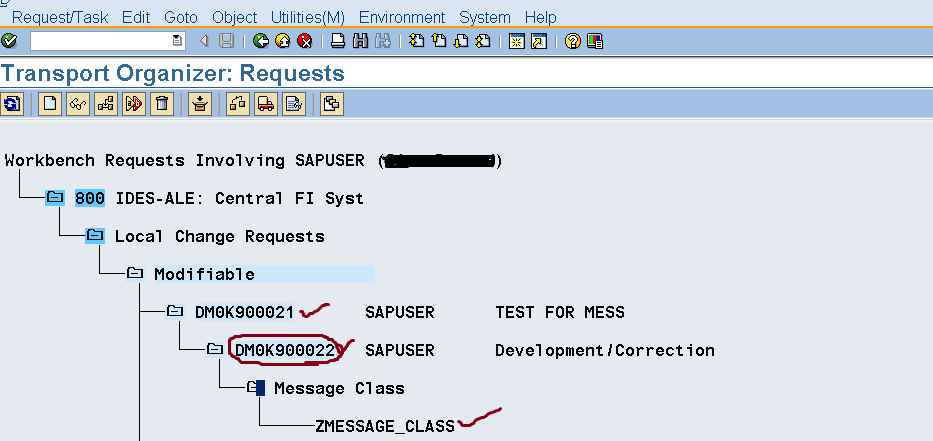
Step5. Go To Tx- SE09  & open the request number under which the message class is saved. Double click on the Task number under the request.


Step6. We can see the Message class is locked in the Request/Task with the below entries.


Step7. Login with language 'DE' and open the message class. Here the message text appears in the original language as we have not yet maintained the transalation text in language in DE.


Step8. Go to the Tx- SE63(login  Language : EN). Navigate along the highlighted menu path.


Step9. Provide the below details and the target language as DE and Click on Edit button.


Step10. Expand the tree & double click on the message name.


Step11. Get the translated text. (Can take help of Google Translator).


Step12. Provide the translated text and Save it. Go Back of the transaction SE63.


Step13. Again display the Message class in the login language DE and we can see the traslated text maintained in login language EN.


------------------------------------------------------------xxxxx----------------------------------------------------------

Message Text Translation in Transaction- SE91

Step1. Log in to the system in EN language and Go to Tx- SE91. Create a Message class.


Step2. Create some message. Now we need to translate the Message text from English to German Language.


Step3. Get the Translation text ready before maintaining it. In this case from Google  Translator.


Step4. Select the First message '000' & from the Menu click on Translation option.


Step5. Provide the target language as 'DE'. and Continue.


Step6. Maintain the Translated DE text and Save it. Go Back.


Step7. Now Login again with Language DE and Open the message class in Tx- SE91.  We can see the first message for which we have maintained translated language appears in the translated language and other messages appears in original language for which no translation is maintained.


Step8. Get the tranlsated text for the second message


Step9. Select the Second message and navigate along the menu path to maintain the translation text.


Step10. Specify the target language and click on Continue button.


Step11. Maintain the translated text and Save it.


Step12. See the message class with login language 'DE'. So all the messages for which translation is maintained appears in that language.


----------------------------------------------------------xxxxx--------------------------------------------------------------


Comments system

Disqus Shortname