Tuesday, 1 July 2014

Simple Transformation of Structure Using Tx- XSLT_TOOL / STRANS ( ABAP-> XML)


This post demonstrates how to transform any ABAP structured data to XML format So that it can be passed to any third party system for further action. Here let's convert a structure (Work Area) context to xml data.

Step1. Let's assume we need to convert any record data of this table into XML format.


Step2. In Tx- SE11 create a structure with the below fields.


Step3. Go to Tx- SXLT_TOOL.


Step4. Provide a transformation name and create it.


Step5. Provide short text, select as Simple Transformation and continue.


Step6. Save it and click on SourceCde tab.


Step7. Click on the Wizard button.


Step8. The below screen appears


Step9. Right click on the Root Node and select Insert New Root.


Step10. Provide any root_name and the above created structure name.


Step11. The below screen appears. Now Drag the Node 'FLIGHT_LINE' to the Right side of the screen and drop under Simple Transformation tab.


Step12. After drop the screen looks like below as shown . Activate it and go back.


Step13. The Below program code generated automatically.

Step14. Go to Tx- SE38 and create a report so that we can call the above created transformation and convert the abap data to XML format.


Step15. Execute the program. Here we can use the standard FM or the ABAP Class ->Method to display the XML structure that i separated by the Transformation.


Step16. The O/P appears as below:


-------------------------------------------------------------xxxxx-------------------------------------------------------------


Update Function Module Failure Analysis

Step1. Go to Tx- SM13.


Step2. Provide the details in the screen like the dates when the failure happened, time as well and click on the Execute button. Before that check the Update System is active.


Step3. The system found below update failure messages in certain dates. To see details about a particular failure, double click on the line or select particular line from the left side button and click on the Modules Button.


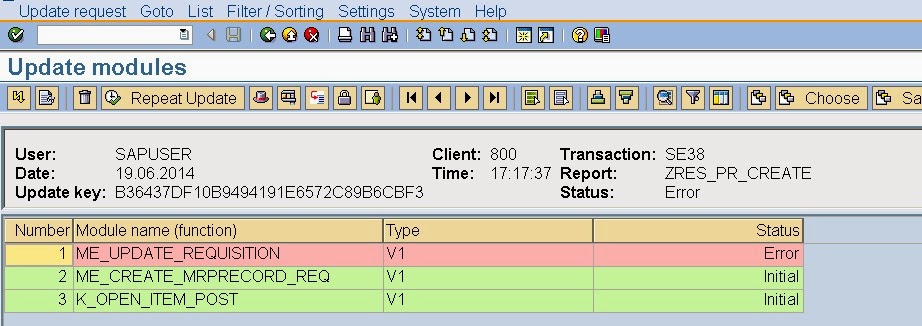
Step4. The failure message involves a call of three update function modules. The first update FM was executed for the very first time and got a status as ERROR so the update call is terminated and next two update FM were not called at all and got the status as initial.

Step5. Double click on each FM and U can see the detailed POP up screen.


Step6. When a Update failure occurs the Requested User receives a mail in his mail Inbox. So go to Tx- SBWP and expand u'r inbox and u can find the Update termination message. Double click on it to see the details. Both Tx- SM13 and SWBP messages are synchronized by the Update key.


--------------------------------------------------------------------xxxxx-----------------------------------------------------------
Monday, 30 June 2014

Controlling Your Program Debugging By Check Point Group Setting


Step1. Go to Tx- SAAB.


Step2. Provide a name & click on Create Button.


Step3. Provide teh description & click on Continue button.


Step4. By Default this screen would appear.


Step5. Select the BREAK Radio button and SAVE it.


Step6. Select for today and continue.


Step7. Create any test program and put a statement 'BREAK-POINT ID ....'.


Step8. Execute the report and the break point would trigger as we have selected Break option in our check point group.


Step9. Make our Check point group inactive and again run the program and directly we can seen the O/P without breakpoint stop.


---------------------------------------------------------------xxxxxx-------------------------------------------------------

Comments system

Disqus Shortname