Scenario: Defaulting the SOLD-TO-PARTY value while creating the sales order in VA01 transaction by using FUNCTION MODULE EXIT.
---------------------------------------------------------------------------------------------------------
Step1. Go to Tx- SE93 and provide Tcode- VA01 & hit display button and get the package name.

Step2. Go to Tcode- SMOD.

Step3. Hit F4 Button.

Step4. Provide the above package name & continue.

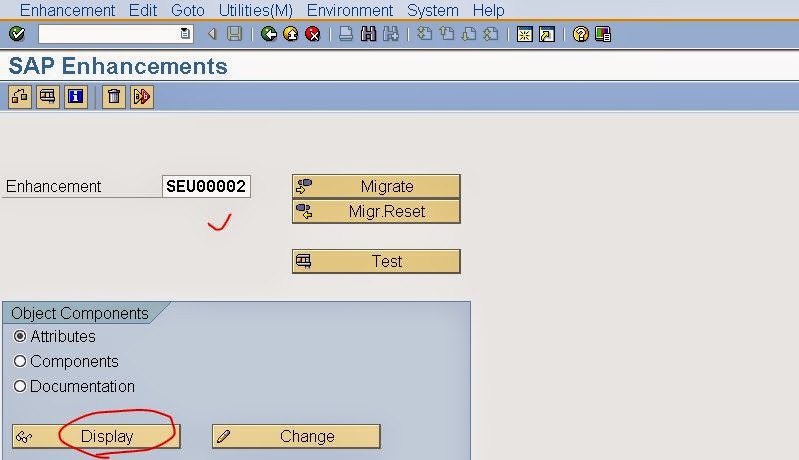
Step6. From the list of Enhancements available in the Package, for our case lets choose the underlined one( double click on the decided enhancement).

Step7. Click on Display button.

Step8. Click on Components button.

Step9. Click on the Function module.

Step10. These function module interface parameters are available to determine the sold-to-party and can be assigned to the Exporting parameter e_kunnr.

Step11. Go to Tx- VA01 to create a sales order.

Step12. Provide details and hit Enter key.

Step13. No SOLD-TO-PARTY field is defaulted.

Step14. Open KNVV table entreis. Here we can see customer- 0000099994 .

Step15. Let's create a project to default the SOLD-TO-PARTY value. Go to Tx- CMOD & provide a Project name and click on Create button.

Step16. Provide the short text and click on the Enhancement assignment button.

Step17. Provide the enhancement name decided from SMOD transaction and hit enter button. At last click on Components button.

Step18. Double click on the Function module name.

Step19. Double click on the Include name.

Step20. Hit the Enter key from the keyboard. From the appeared pop up click on Yes button.

Step21. Provide the below code. Here just we have hard coded the sold-to--party vale. But the value of the sold-to-party can be decided dynamically from the importing parameters of the function module.

Step22. Put the debug point and go back.

Step23. Activate the Project.

Step24. The implementation turns green.

Step25. Now again run - Tx- VA01 and provide the values & hit enter.

Step26. The debug point reached and we can see the function modules importing parameters. Double click on the parameter : I_TVTA.

Step27. The structure I_TVTA contains the below values which can be used to dynamically decide any sold-to-party depending on the business requirement. Click on F8.

Step28. Here the Sold-to-Party field is defaulted.

Step29. Let's find where this function module exit is called in the standard VA01 transaction. From Tx- SE93 get the program name for the Tx- VA01.

Step30. Open the Program in Tx- SE38 and click on the find button.

Step31. Search for the Key Word 'call customer-function' and select main program radio button.

Step32. Here we can see ' call customer-function '002' -> our function module also ends with 002 , which calls the function module 'EXIT_SAPMV45A_002' .

Step33. In the Debugging also we can see.

-------------------------------------------------------------------------------------------------------
---------------------------------------------------------------------------------------------------------
Step1. Go to Tx- SE93 and provide Tcode- VA01 & hit display button and get the package name.
Step2. Go to Tcode- SMOD.
Step3. Hit F4 Button.
Step4. Provide the above package name & continue.
Step6. From the list of Enhancements available in the Package, for our case lets choose the underlined one( double click on the decided enhancement).
Step7. Click on Display button.
Step8. Click on Components button.
Step9. Click on the Function module.
Step10. These function module interface parameters are available to determine the sold-to-party and can be assigned to the Exporting parameter e_kunnr.
Step11. Go to Tx- VA01 to create a sales order.
Step12. Provide details and hit Enter key.
Step13. No SOLD-TO-PARTY field is defaulted.
Step14. Open KNVV table entreis. Here we can see customer- 0000099994 .
Step15. Let's create a project to default the SOLD-TO-PARTY value. Go to Tx- CMOD & provide a Project name and click on Create button.
Step16. Provide the short text and click on the Enhancement assignment button.
Step17. Provide the enhancement name decided from SMOD transaction and hit enter button. At last click on Components button.
Step18. Double click on the Function module name.
Step19. Double click on the Include name.
Step20. Hit the Enter key from the keyboard. From the appeared pop up click on Yes button.
Step21. Provide the below code. Here just we have hard coded the sold-to--party vale. But the value of the sold-to-party can be decided dynamically from the importing parameters of the function module.
Step22. Put the debug point and go back.
Step23. Activate the Project.
Step24. The implementation turns green.
Step25. Now again run - Tx- VA01 and provide the values & hit enter.
Step26. The debug point reached and we can see the function modules importing parameters. Double click on the parameter : I_TVTA.
Step27. The structure I_TVTA contains the below values which can be used to dynamically decide any sold-to-party depending on the business requirement. Click on F8.
Step28. Here the Sold-to-Party field is defaulted.
Step29. Let's find where this function module exit is called in the standard VA01 transaction. From Tx- SE93 get the program name for the Tx- VA01.
Step30. Open the Program in Tx- SE38 and click on the find button.
Step31. Search for the Key Word 'call customer-function' and select main program radio button.
Step32. Here we can see ' call customer-function '002' -> our function module also ends with 002 , which calls the function module 'EXIT_SAPMV45A_002' .
Step33. In the Debugging also we can see.
-------------------------------------------------------------------------------------------------------