Thursday, 10 July 2014

Explicit Enhancement: Enhancement Point


Creating Enhancement point really makes sense to enhance SAP standard program where the business needs some specific functionality that could not be achieved by implicit enhancement technique. In the below demo the explicit enhancement technique is described in a Z program.
---------------------------------------------------------------------------------------------------------------------------------- 

Step1. Create a  report program & execute it.
Step2.  The below O/P appears.
Step3. put the cursor on a empty line and from the Menu navigation Create a option.
Also same can be done by right click on am empty line and navigate along the highlighted path to create an option.
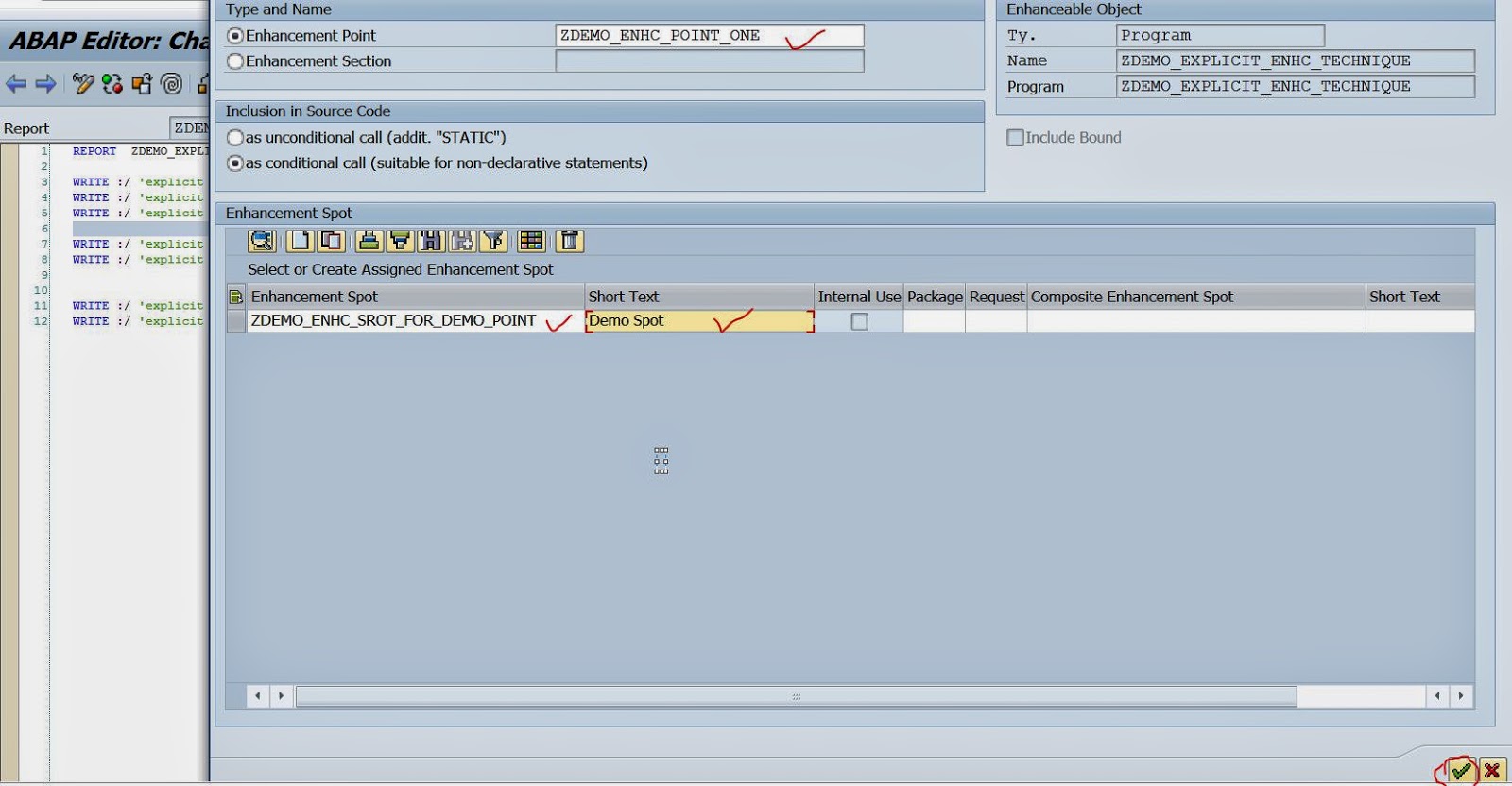
Step4. The below pop up screen apperas.
Step5. Provide an Enhancement Point Name and Enhancement Spot & short text . At last click on Continue button.
Step6. One new line is inserted at the selected point in the program. Now the enhancement point is created but we need a enhancement implementation to put our specific code. So click on the Spiral icon to enter into enhancement mode.

Step7. Place the cursor on the Enhancement point .
Step8. Navigate along the menu option to create an implementation.
Step9. Provide the implementation name & description and continue.
Step10. The below ENHANCEMENT & ENDENHANCEMENT line is added in the program under the enhancement point. 

Step11. Put some code inside the enhancement implementation. The enhancement implementation is inactive. Double click on the Enhancement Implementation.


Step12. It is inactive.


Step13. Activate it and go back.


Step14. The enhancement implementation is active but the program is inactive. Go back from the enhancement mode.(i.e click on the back button).


Step15. Activate the program  & execute it.


Step16. Hence we get the below O/P.


----------------------------------------------------------------------------------------------------------------------------------------

Wednesday, 9 July 2014

Implicit Enhancement in SAP Standard Program


Step1. Go to Tx- SE38 and open the below sap standard program. Click on the Spiral Icon to enter into Enhancement mode.


Step2. After selecting the Spiral option the below type of screen appears with X- cross mark on the left side.


Step3.  To see the  implicit Enhancement options navigate along the highlighted path.


Step4. An arrow mark appears in some parts of the program.


Step5. Mouse click on the dotted line right to the arrow mark and navigate along the highlighted menu path to create an implementation.


Step6. Provide an Enhancement Implementation name & short text and click on Continue button.


Step7. Save it.


Step8. The below screen appears with Enhancement -------- and endenhancement.  We have to put our code inside it.


Step9. Put some extra code and click on the Activate Enhancement button.


Step10. Go back and run the program.


Step11. The below O/P appears:


--------------------------------------------------------------------------------------------------------------------------------------

Field Exit


Step1. Go to Tx- SE11 and open the table SCARR. For the data element - S_CARRNAME the description is 'Airline name'. Let's use the field exit to update the description of this standard data element.


Step2. Go to Tx- CMOD.


Step3. Navigate along the path.


Step4. Provide the data element name whose description would be changed & continue.


Step5. The below data element description available by standard.


Step6. Let's change the short description and save it.


Step7. Save in a request.


Step8. The below message appears. Close the pop up screen.


Step9. Again lunch the Tx- SE11 and open the table SCARR a nd we can see the updated short description for the Data Element- S_CARRNAME.


--------------------------------------------------------------------------------------------------------

Comments system

Disqus Shortname