Friday, 5 September 2014

Defining New Sales Document type In SAP SD


In Sales and Distribution, any sales document is created with respect to a  Order type that subsequently determines the screen fields. The most used sales document types delivered by standard sap are Sales Order (OR), Debit Memo Request (DR) , Credit Memo Request (CR) and others. If the customer wants to have a separate sales doc type then they can create in by copying from the standard or by creating a fresh new one as per the business demand.
To Define a new Sales Document type follow the below steps:

Step1. Go to Tcode- VOV8 or follow the spro img path.
IMG  Path :-  SPRO > IMG > Sales and Distribution > Sales > Sales Documents > Sales Document Header > Define Sales Document Types


Step2. Lets create a new standard order by copying the standard Order (OR). Select the order type OR and click on Copy button.


Step3. Change the sales document type to ZOR and the description and other parameters as well as per the business demand and save it. At last go back.


Step4. So the newly created order type appears in the list.


--------------------------------------------------------------------------------------------------------------------------


Thursday, 4 September 2014

Creating a Plant, Storage Location & Shipping point & Linking them


Step1. Navigate along the SPRO - IMG path to create a new plant.


Step2. Double click on the highlighted option.


Step3. Select a plant and click on the copy button.


Step4. Change the Plant name and other & hit Enter key from keyboard.


Step5. Provide the below details and click on Continue button.


Step6. Save it and go back.


Step7. The Plant appears in the list.


Step8. Navigate along the path to create storage location for the plant.


Step9. Provide the plant name and continue.


Step10. Click on New Entries button.


Step11. Provide the Storage Location and description.


Step12. Save it .


Step13. Navigate along the highlighted path to create Shipping point.


Step14. Double click on the marked line.


Step15. Most of the time new objects are created by coping the standard one and later changing the value. So select a shipping point and click on Copy button.


Step16. Provide the values and hit Enter key.


Step17. Provide some extra information and continue.


Step18. So the new shipping point appears in the list.


Step19. Now up to this point plant, storage location and shipping points are created. Lets assign then by their dependency. From the highlighted navigation path, lets assign plant to the company code.


Step20. Click on new Entries.


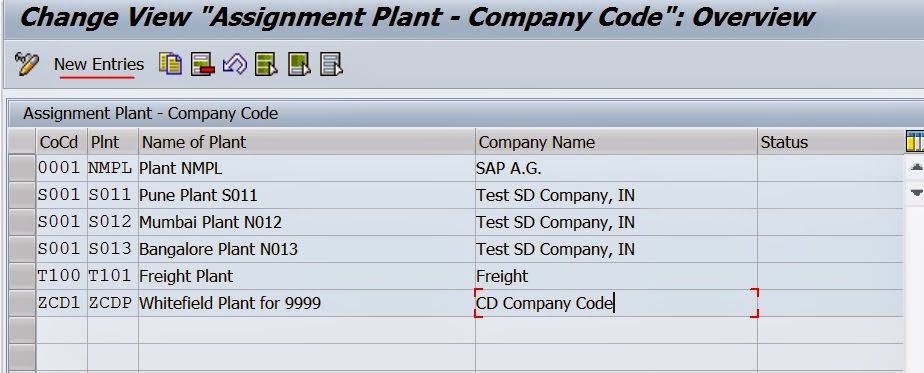
Step21. Provide the company code and plant name and save it.


Step22. So the combination appears in the list.


Step23. Navigate along the highlighted path to assign plant to the sales org and dis channel.


Step24. Click on new Entries.


Step25. Provide the sales org, dis channel and plant and then save it.


Step26. The combination appears in the list.


Step28. Navigate along the highlighted path to assign shipping point to the plant.


Step29. Select the plant and click on Assign button.


Step30. Select the above created shipping point and click on continue button.


Step31. So then the shipping point appears as a sub node to the plant.


------------------------------------------------------------------------------------------------------------------------------------

Wednesday, 3 September 2014

Parallel Processing In OOabap

Step1. Create a report with class and methods.
---------------------------------------------------------------------------------------------------------------------------------

REPORT  zparallel_processing_oo.

DATA chk1,
              chk2,
              ret11 TYPE TABLE OF  bapisdstat,
              ret22 TYPE TABLE OF  bapisdstat,
              ret TYPE  bapisdstat.

******************************************************
CLASS lcl_demo DEFINITION.
  PUBLIC SECTION.

    CLASS-METHODS call IMPORTING sdoc1 TYPE bapivbeln-vbeln
                                                                      sdoc2 TYPE bapivbeln-vbeln ,
                    handle1 IMPORTING p_task TYPE clike, " must have a importing para- of type clike
                    handle2 IMPORTING p_task TYPE clike. " 
must have a importing para- of type clike
ENDCLASS.                    "LCL_DEMO DEFINITION


*----------------------------------------------------------------------*
*       CLASS LCL_DEMO IMPLEMENTATION
*----------------------------------------------------------------------*
CLASS lcl_demo IMPLEMENTATION.
  METHOD call.
    CALL FUNCTION 'BAPI_SALESORDER_GETSTATUS'
      STARTING NEW TASK 'FUNC1'
      DESTINATION 'NONE'
      CALLING handle1 ON END OF TASK
      EXPORTING
        salesdocument sdoc1.

    CALL FUNCTION 'BAPI_SALESORDER_GETSTATUS'
      STARTING NEW TASK 'FUNC2'
      DESTINATION 'NONE'
      CALLING handle2 ON END OF TASK
      EXPORTING
        salesdocument sdoc2.
    WAIT UNTIL  chk1 abap_true AND chk2 abap_true.

    WRITE :'SUCCESS'.

  ENDMETHOD.                    "CALL


  METHOD handle1.
    DATAret1 TYPE TABLE OF bapisdstat.
    RECEIVE RESULTS FROM FUNCTION 'BAPI_SALESORDER_GETSTATUS'
    TABLES
    statusinfo        ret1.
    ret11 ret1.
    chk1 abap_true.

  ENDMETHOD.                    "HANDLE1


  METHOD handle2.
    DATAret2 TYPE TABLE OF bapisdstat.
    RECEIVE RESULTS FROM FUNCTION 'BAPI_SALESORDER_GETSTATUS'
    TABLES
    statusinfo        ret2.
    ret22 ret2.
    chk1 abap_true.

  ENDMETHOD.                    "HANDLE2

ENDCLASS.                    "LCL_DEMO IMPLEMENTATION

START-OF-SELECTION.
  PARAMETERSp_sdoc1 TYPE bapivbeln-vbeln,
                               p_sdoc2 TYPE bapivbeln-vbeln.

  CALL METHOD lcl_demo=>call
    EXPORTING
      sdoc1 p_sdoc1
      sdoc2 p_sdoc2.

  LOOP AT ret11 INTO ret.
    WRITE :/ ret-doc_number ret-materialret-creation_date.
  ENDLOOP.
  CLEAR ret.
  LOOP AT ret22 INTO ret.
    WRITE :/ ret-doc_number ret-materialret-creation_date.
  ENDLOOP.


-----------------------------------------------------------------------------------------------------------------------------


Step2. The screen shot of the report.


Step3. Provide the Input and execute it.


Step4. THe O?p is shown below.


-----------------------------------------------------------------------------------------------------------------------------------


Comments system

Disqus Shortname