Step 1. Provide the view name as given below and Click on Create Button.

Step 2. Select the Maintenance View Radio Button and Click on COPY button.

Step 3. Provide the short text and in the Tables section provide the table name 'SPFLI' and click on the Relationships Button.

Step 4. Select the combination as marked and click on COPY Button.

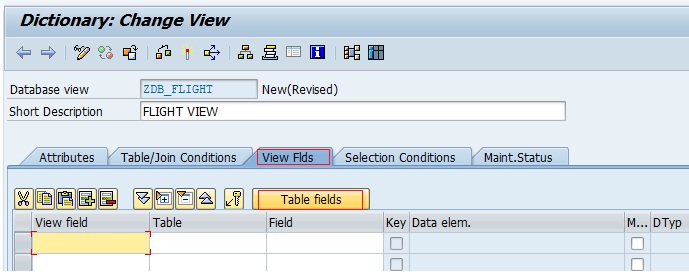
Step 5. The Join condition is automatically field based on the two table matching fields. Now click on the View Flds Tab.

Step 6. Click on the Table Fields.

Step 7. Select the 'SPFLI' table and click on the Choose Button.

Step 8. Select the required fields From the table to add it in the View and click on the COPY Button.

Step 9. All the Selected fields From the Table are populated in the view and then click on the Table Fields Button to add some fields from SCARR Table.

Step 10. Select the SCARR table and click on the Choose Button.

Step 11. Select some fields and then click on the COPY Button.

Step 12. All the fields from two tables are added to the Maintenance View.

Step 13. Click on the Maint. Status Tab and select the appropriate Radio Button and activate the View.

Step 14. To Create the TMG , Click on Utilities and then click on Table Maintenance Generator.

Step 15. Provide the details and click on the Find Scr. Number(s) Button.

Step 16. Select the First Button and then click on the Tick button.

Step 17. System automatically fills the Overview Screen Number and then click on the Create button.

Step 18. Now go to TCODE-SM30 and provide the Maintenance View name and clikc on Maintain button.

Step 19. It shows the data from two tables and here you can create new entries, modify existing entries and delete Entries.

Step 2. Select the Maintenance View Radio Button and Click on COPY button.
Step 3. Provide the short text and in the Tables section provide the table name 'SPFLI' and click on the Relationships Button.
Step 4. Select the combination as marked and click on COPY Button.
Step 5. The Join condition is automatically field based on the two table matching fields. Now click on the View Flds Tab.
Step 6. Click on the Table Fields.
Step 7. Select the 'SPFLI' table and click on the Choose Button.
Step 8. Select the required fields From the table to add it in the View and click on the COPY Button.
Step 9. All the Selected fields From the Table are populated in the view and then click on the Table Fields Button to add some fields from SCARR Table.
Step 10. Select the SCARR table and click on the Choose Button.
Step 11. Select some fields and then click on the COPY Button.
Step 12. All the fields from two tables are added to the Maintenance View.
Step 13. Click on the Maint. Status Tab and select the appropriate Radio Button and activate the View.
Step 14. To Create the TMG , Click on Utilities and then click on Table Maintenance Generator.
Step 15. Provide the details and click on the Find Scr. Number(s) Button.
Step 16. Select the First Button and then click on the Tick button.
Step 17. System automatically fills the Overview Screen Number and then click on the Create button.
Step 18. Now go to TCODE-SM30 and provide the Maintenance View name and clikc on Maintain button.
Step 19. It shows the data from two tables and here you can create new entries, modify existing entries and delete Entries.